The workbench
The workbench is Community Lab IDE's second view: a folder of ordinary files, an editor that knows their shapes, a run for each kind of file, and a Console and a Problems list below. Switch to it with Ctrl+2 (or Workbench in the top bar), and back to the province with Ctrl+1. The province keeps its own clock while you are here: the play button in the top bar still runs it.
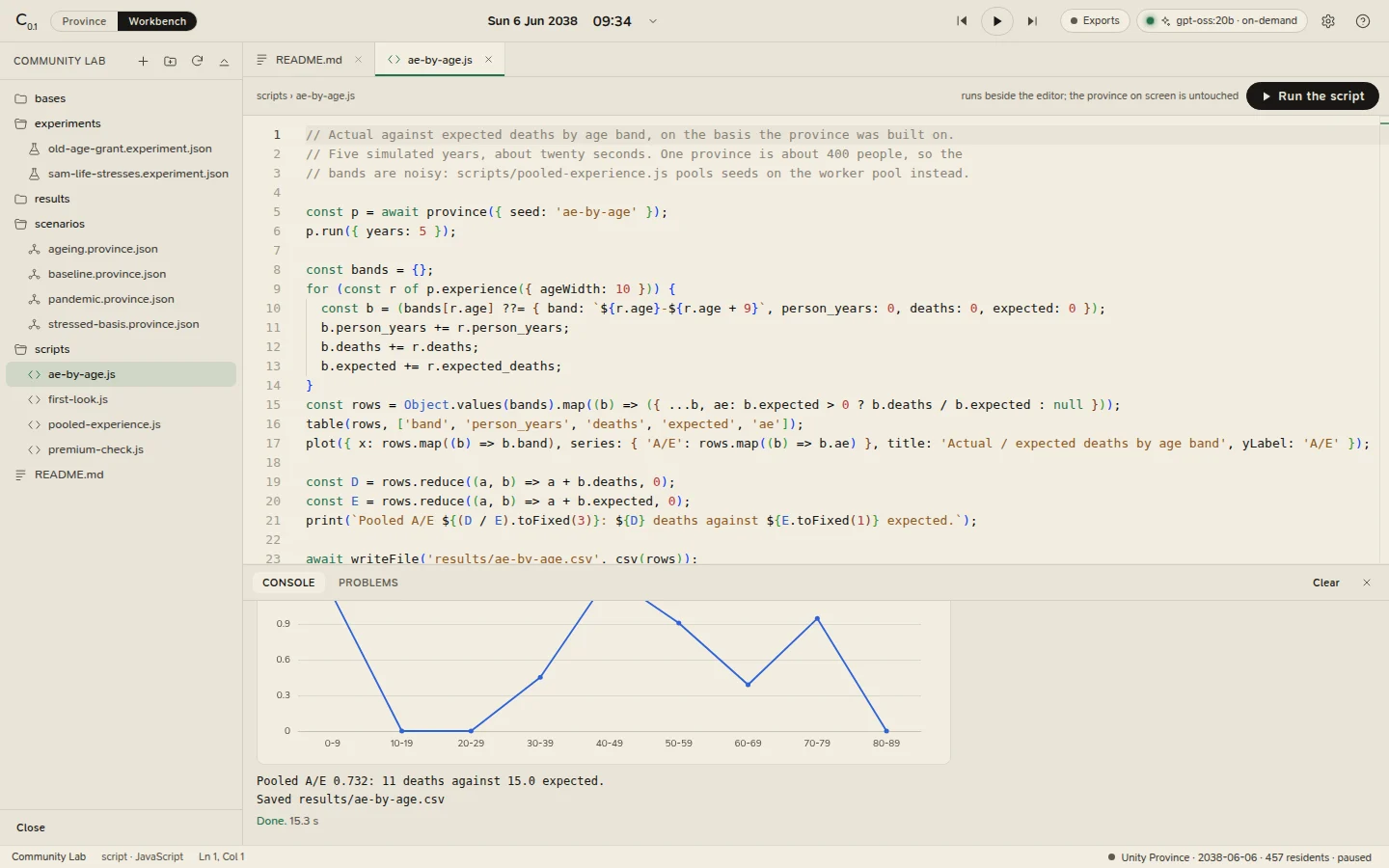
scripts/ae-by-age.js: the workspace in the explorer, the script in the editor, and its table and plot in the Console.Workspaces
A workspace is any folder. With none open, the workbench shows its welcome screen, with two ways in:
- Start from the sample: Create the sample workspace writes the sample (four provinces, two
experiments, four scripts and a mortality table, every one runnable) into a new folder,
Community Labin your Documents folder unless you choose another place. - Open a folder: any folder works. File › Open Folder (Ctrl+O) does the same at any time.
The IDE remembers the folder and the files you had open, and reopens them next time. File › Open Recent and the welcome screen list the folders you used lately. File › New Workspace closes the current workspace and shows the welcome screen again; File › Close Workspace just closes it.
Everything in a workspace is a plain text file: version it with git, diff it, review it, share it, open it in any other editor.
Save before you switch folders
Opening a different folder replaces the open tabs, and unsaved changes in them are lost without a question. Closing the workspace, New Workspace, closing the window and quitting all ask first.
The layout
| Part | What it is |
|---|---|
| Explorer (left; Ctrl+B) | The folder's files. |
| Editor (middle) | A tab for each open file, and above it the file's path, what running it will do, and Run. |
| Console and Problems (below; Ctrl+J) | What runs print, their tables, plots and progress; and every error and warning, by file and line. |
| Status bar (bottom) | The workspace, the file's kind, the cursor's line and column, and on the right the province's date, residents and speed (click it to go to the province). |
Drag the edges between them to resize; the sizes are remembered.
The explorer
Folders come first, then files, in order. Hidden files (names beginning with a dot, except .gitignore) and
node_modules, .git, .hg, .svn, __pycache__, .venv and venv are left out; a very large folder is listed to
a few thousand entries and eight levels deep. The explorer refreshes itself every few seconds, and after anything
the IDE writes.
Hover over an entry for its tools: ▶ runs a file that can run; Rename renames a file or a folder (open tabs follow it); the bin moves it to the trash (the system's trash in the desktop app), after asking. A file with problems has its name tinted.
The header's + makes a new file, in the folder for its kind:
| Item | Creates |
|---|---|
| Province | scenarios/untitled.province.json: a seed of its own and an empty basis |
| Experiment | experiments/untitled.experiment.json: the first of the lab's templates, on 8 seeds and 10 years |
| Script | scripts/untitled.js: a starter script |
| Note | notes/note.md |
| The province on screen | scenarios/<region>-<seed>.province.json: the province you built in the Scenario panel, every parameter that differs from the defaults, its table and its shocks |
If the name is taken, the new file is untitled 2, untitled 3 and so on. The header also has New folder,
Refresh and Collapse folders. The same items are under File › New in the desktop app.
Files that run
Ctrl+Enter, the Run button, or ▶ in the explorer runs a file. A file is saved before it runs. Stop (Ctrl+Shift+Enter, or the button that replaces Run) ends a run.
| File | What running it does |
|---|---|
*.province.json |
Rebuilds the province on screen on it, and switches to it. |
*.experiment.json |
Runs a paired experiment on the worker pool, opens it in the lab, and keeps the result in results/. |
*.js |
Runs a script beside the editor, with the engine, the worker pool and the workspace at hand. |
The line above the editor says what a run will do before you start it: for an experiment, how many runs and province-years it will take and roughly how long.
An error stops a run, and its reasons are listed in Problems and in the Console. A basis value the engine does not take (an unknown name, a value outside its range) is a warning: that value is left out, named, and the rest of the file is applied.
Other files
| File | Opens as |
|---|---|
| CSV, TSV | A table of its first 500 rows, with Edit as text |
README.md |
A preview, with Edit as text |
| JSON, Markdown, JavaScript, any other text | Text, in the editor |
Binary files, and files over 5 MB, are not opened. A mortality table is a CSV a province can live on.
The editor
The editor is the one VS Code uses (Monaco). For province and experiment files it checks the file against its schema as you type, completes every field and every basis parameter, and shows each parameter's meaning, range and default on hover; a wrong value is underlined before anything runs. For scripts it completes and checks the script API.
Saving
Ctrl+S saves the file in front and Ctrl+Shift+S saves them all. A tab with unsaved changes carries a dot, and closing it asks whether to save.
The IDE writes a file by writing a temporary copy and renaming it over the original, so a crash never leaves half a file. It will not save over a file that has changed on disk since you opened it (another editor, a sync folder): the save is refused, and a bar above the editor offers Reload from disk or Keep mine and overwrite.
Safety
Paths never leave the workspace: the engine resolves every path inside the folder and refuses .., absolute paths,
and links that lead somewhere else. It answers requests from this machine only.
Shortcuts
| Run the file / Stop | Ctrl+Enter / Ctrl+Shift+Enter |
| Save / Save all | Ctrl+S / Ctrl+Shift+S |
| Close the file | Ctrl+W, or middle-click its tab |
| Explorer / Console and Problems | Ctrl+B / Ctrl+J |
| Province / Workbench | Ctrl+1 / Ctrl+2 |
| New province file / Open a folder | Ctrl+N / Ctrl+O (desktop app) |
On a Mac, Cmd in place of Ctrl.