First launch
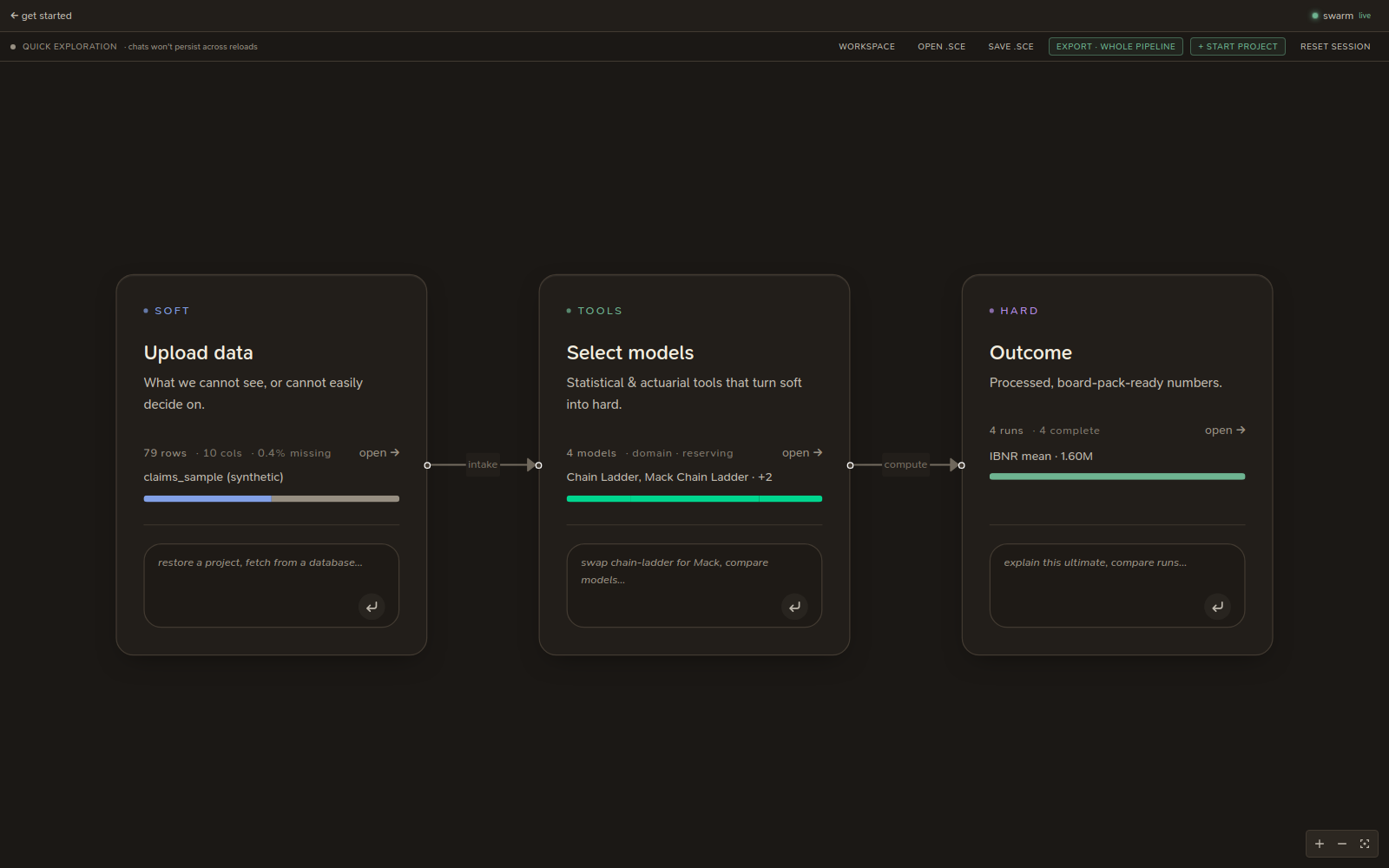
The pipeline, straight away
Every launch plays a short intro, the S₀.₂ mark drawing itself in, and opens on the Scelo pipeline: the macro view of the three stages, Soft → Tools → Hard (see The pipeline). get started, top left, takes you to the welcome screen. The bar above the pipeline carries:
- workspace — the files, editor and terminal (see The workspace). With no workspace open yet, it takes you to the welcome screen to pick one.
- open .sce / save .sce — the whole session as a project file.
- export · whole pipeline.
- + start project — name the session so its chats persist.
- reset session — wipe the dataset, model picks, runs and activity log. It asks first.
A click or a key skips the intro; with reduced motion on, the mark simply appears.
The runtime check
The runtime check reports on the bundled stack:
- Python — the portable interpreter version and that it can import the IA package set (numpy, pandas, lifelib, chainladder, climada, …).
- R — the portable R version and that the actuarial libraries (ChainLadder, chainladder, lifecontingencies, forecast, …) load.
- Status per component — green when ready; a clear message if something didn't stage.
Open it any time with Navigate: Runtime Check in the command palette, or at
the /runtime-check route. If a component shows an error, see
Troubleshooting.
The welcome screen
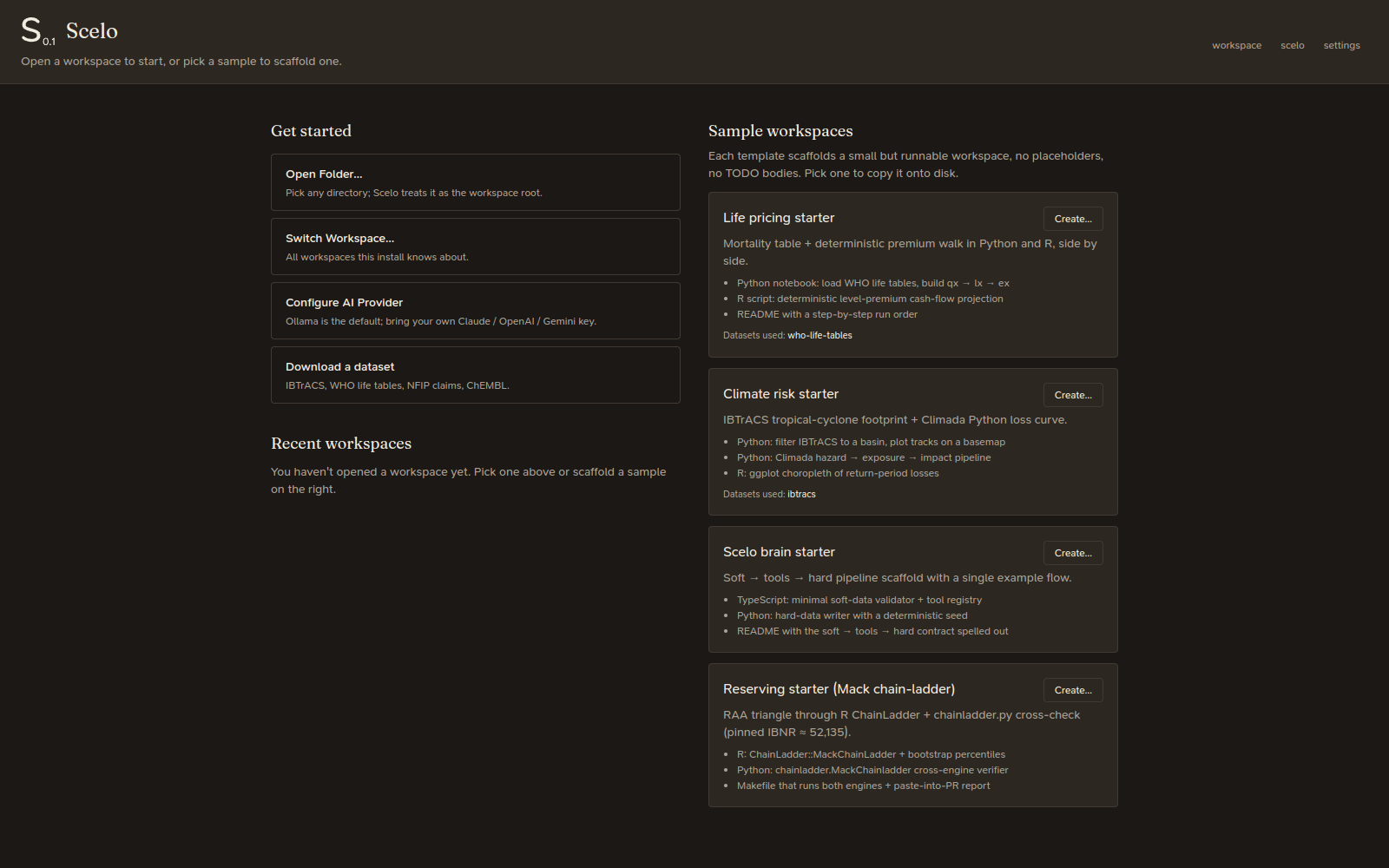
The welcome screen is where you choose where to work. get started, top left of the pipeline, always opens it; workspace takes you there while no workspace is open, and the workspace header links back to it:
- Open Folder… — point Scelo at any directory; it becomes the workspace root.
- Switch Workspace… — jump between workspaces Scelo knows about.
- Configure AI Provider — Ollama is the local default (no key, no spend); switch to a hosted provider here. See AI providers.
- Download a dataset — grab a starter dataset (IBTrACS cyclones, WHO life tables, NFIP claims, ChEMBL, …).
- Sample workspaces — one-click scaffolds you can copy to disk to learn the
flow:
- Life pricing starter — mortality table + deterministic premium walk in Python and R.
- Climate risk starter — IBTrACS + Climada loss curve.
- Scelo brain starter — a minimal soft → tools → hard pipeline.
- Reserving starter (Mack chain-ladder) — RAA triangle through R ChainLadder + chainladder.py, cross-checked.
Where to next
- New to the flow? → Getting started
- Want the code editor / terminal? → The workspace
- Straight to the analysis? → The pipeline